Reset Your Password
Recover account access safely through the reset-password flow.
2 min read
Updated Mar 4, 2026
Before You Start
- Open your community login page.
- Use the email address linked to your account.
- Keep access to that email inbox.
Step 1: Request a Reset Link
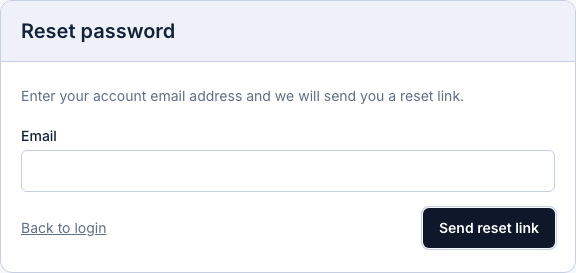
- On the login page, click `Forgot password?`.
- Enter your account email address.
- Click `Send reset link`.
Step 2: Open the Reset Email
- Open your inbox and look for the password reset email.
- Open the email and click the reset link.
- If you do not see it, check your spam or promotions folder.
Step 3: Set a New Password
- Enter your new password.
- Confirm the same password again.
- Click `Save new password`.
Step 4: Sign In Again
- Go back to the login page.
- Use your email and new password to sign in.
Troubleshooting
- No reset email: wait a minute, then check spam and try again.
- Reset link expired: request a new reset email.
- Password not accepted: make sure both password fields match exactly.
Expected Result
Your password is updated and you can sign in with your new password.