Community URL Rules and Limits
Pick a clean community URL that is easy to remember and passes validation.
3 min read
Updated Mar 4, 2026
Before You Start
- Open the `Launch Community` form.
- Keep one short URL name ready (for example: `growth-lab`).
- Avoid using your full business sentence as the URL.
Step 1: Follow the URL Format Rules
- Use lowercase letters only (`a-z`).
- You can use numbers (`0-9`).
- You can use hyphens (`-`) between words.
- Do not use spaces, special characters, or emojis.
- Keep it short so members can remember it easily.
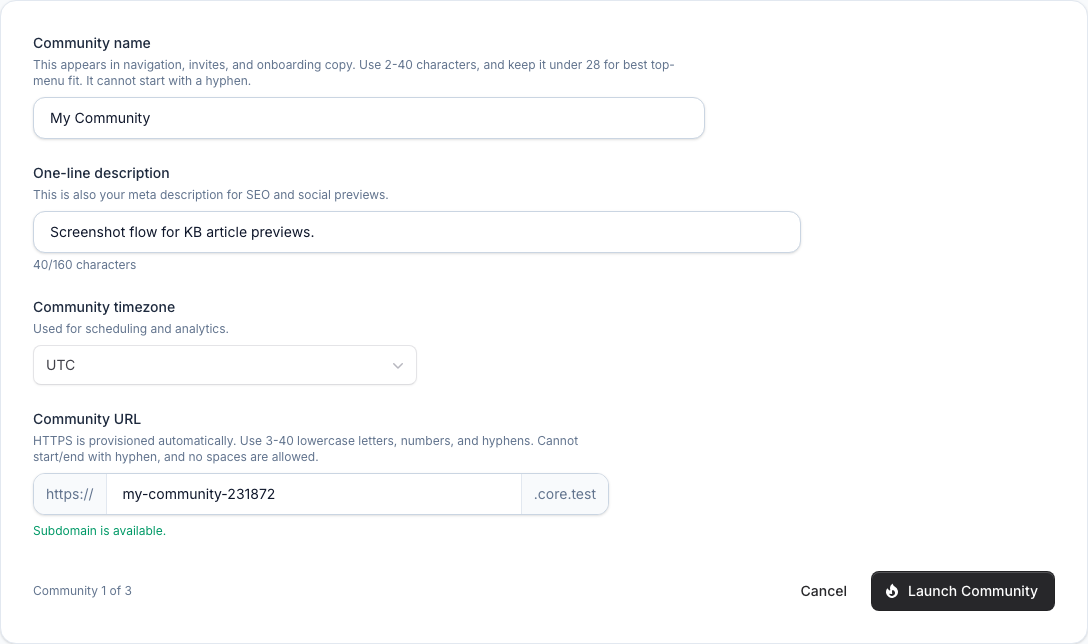
Step 2: Check Availability
- Type your URL name in the URL field.
- Click outside the field to trigger the check.
- If the name is available, continue with launch.
- If it is taken, try a small variation (for example add your city or brand short name).
Common Issues
- Name already taken: add a short unique word and check again.
- Invalid format: remove spaces or symbols.
- Reserved word: pick another URL name.
Expected Result
Your URL name is accepted, and your community can be launched with that address.