Publish Your First Post
Use the composer to publish your first discussion or article confidently.
3 min read
Updated Mar 4, 2026
Before You Start
- Open your community.
- Choose the channel where you want to post.
- Keep a clear title ready.
Step 1: Open the Post Composer
- From your community home, click `New`.
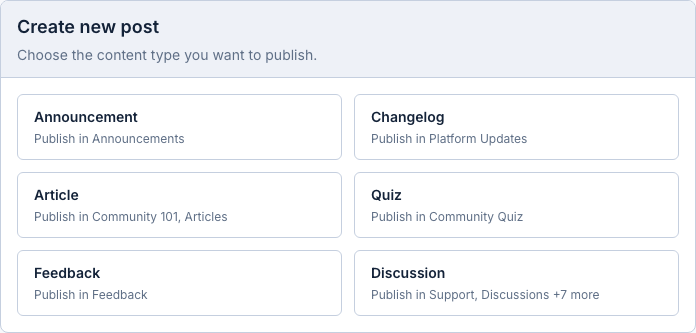
- Choose the post type (for example `Discussion` or `Article`).
Step 2: Write Your Post
- Enter a short, clear title.
- Write your main content in the editor.
- If needed, add images (up to 5MB per image).
Step 3: Publish
- Review your post once before publishing.
- Click the publish button.
- You should return to the feed and see your new post.
Troubleshooting
- If publish is blocked, check required fields like title/body.
- If image upload fails, make sure the file is 5MB or smaller.
- If you cannot create a post in that channel, ask an admin to check channel posting permissions.
Expected Result
Your post is live in the selected channel and visible in the feed.