Create Channels and Choose Post Types
Create channels with the right post type for discussions, articles, updates, and more.
4 min read
Updated Mar 4, 2026
Before You Start
- Sign in as a community owner or admin.
- Decide what this channel is for (for example discussions, announcements, or articles).
- Keep a short channel name and description ready.
Step 1: Open Channel Settings
- Open `Settings` in your community.
- Go to `Channels`.
- Click `New channel`.
Step 2: Fill Channel Basics
- Enter a clear channel name.
- Add a short channel description.
- Set a channel slug, or leave it empty to auto-generate.
- Pick a channel icon.
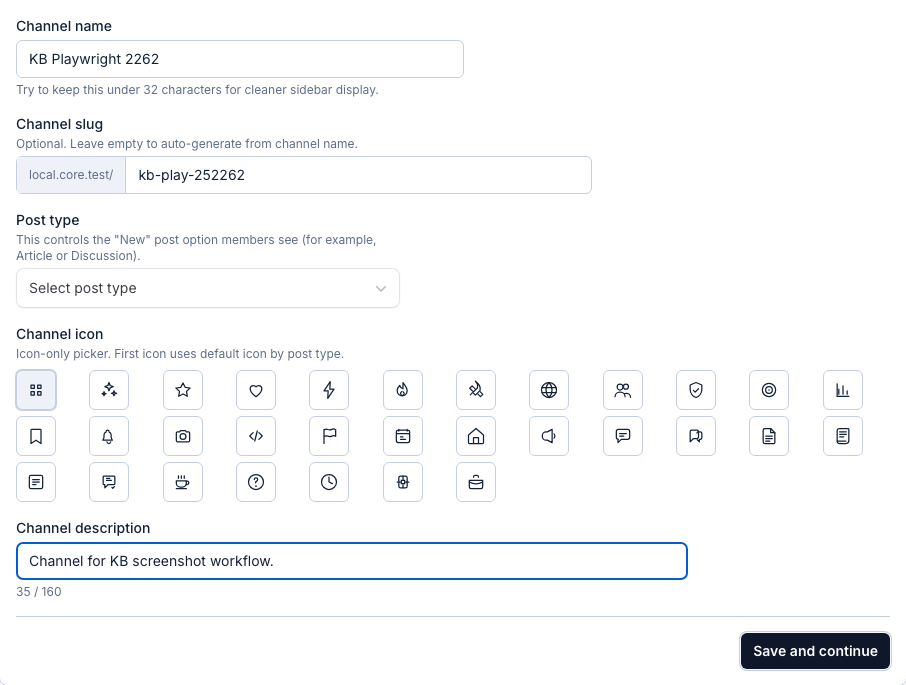
Step 3: Choose the Post Type
- Choose `Discussion` for regular conversations.
- Choose `Announcement` for updates from your team.
- Choose `Article` for long-form knowledge content.
- Choose other types only when they match your use case.
Step 4: Save and Continue
- Click `Save and continue`.
- You will move to privacy and permissions setup for this channel.
Expected Result
Your new channel is created and ready for privacy and posting permission setup.