Upload Logo, Dark Logo, and Favicon
Apply brand assets with supported formats, sanitization, and size limits.
4 min read
Updated Mar 4, 2026
Before You Start
- Sign in as a community owner or admin.
- Prepare your logo files before opening settings.
- Use clear images so text and icons stay readable.
Step 1: Open Branding in General Settings
- Go to `Community Admin`.
- Open `General settings`.
- Scroll to the `Branding` section.
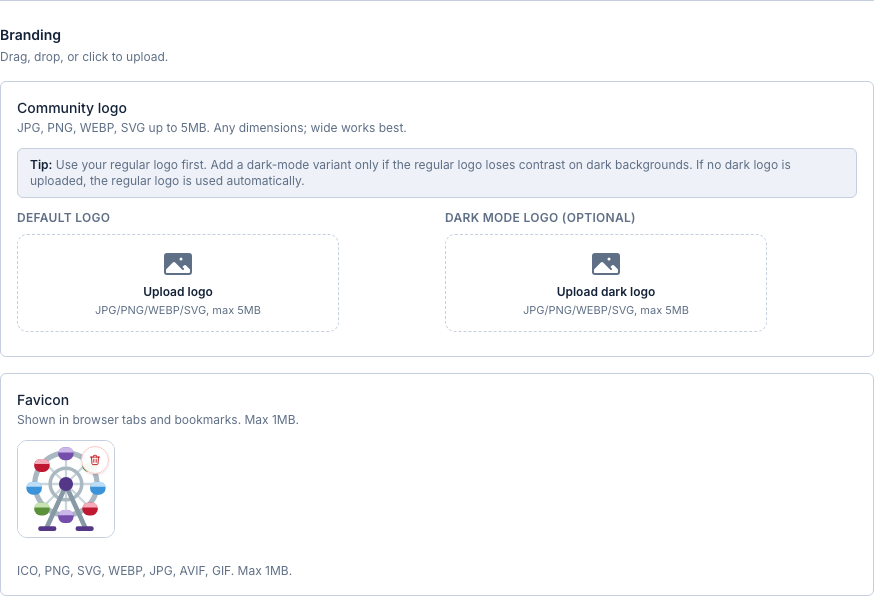
Step 2: Upload Community Logo
- In `Default logo`, click upload and choose your logo.
- Use JPG, PNG, WEBP, or SVG.
- Keep file size at 5MB or less.
Step 3: Upload Dark Mode Logo (Optional)
- In `Dark mode logo (optional)`, upload a dark-background version.
- Use this only if your regular logo is hard to read on dark backgrounds.
- If you skip this, Jatra uses your default logo automatically.
Step 4: Upload Favicon
- In `Favicon`, upload your tab icon.
- Supported formats: ICO, PNG, SVG, WEBP, JPG, AVIF, GIF.
- Keep favicon size at 1MB or less.
Step 5: Save and Verify
- Click `Save changes`.
- Check the top bar logo in your community.
- Open a browser tab and confirm the favicon appears.
Troubleshooting
- Upload fails: use a supported format and reduce file size.
- Logo looks blurry: upload a higher-quality source image.
- Old favicon still appears: refresh the page and clear browser cache.
Expected Result
Your branding is updated with a default logo, optional dark logo, and favicon.