Configure Safeguards and Blocked Domains
Set trust-window restrictions, mention limits, and banned email domains.
5 min read
Updated Mar 4, 2026
Before You Start
- Sign in as a community owner or admin.
- Open `Community Admin` settings.
- Decide stricter limits for new members before saving.
Step 1: Open Moderation Settings
- Go to `Community Admin`.
- Open `Moderation`.
Step 2: Set Trust Window and Daily Limits
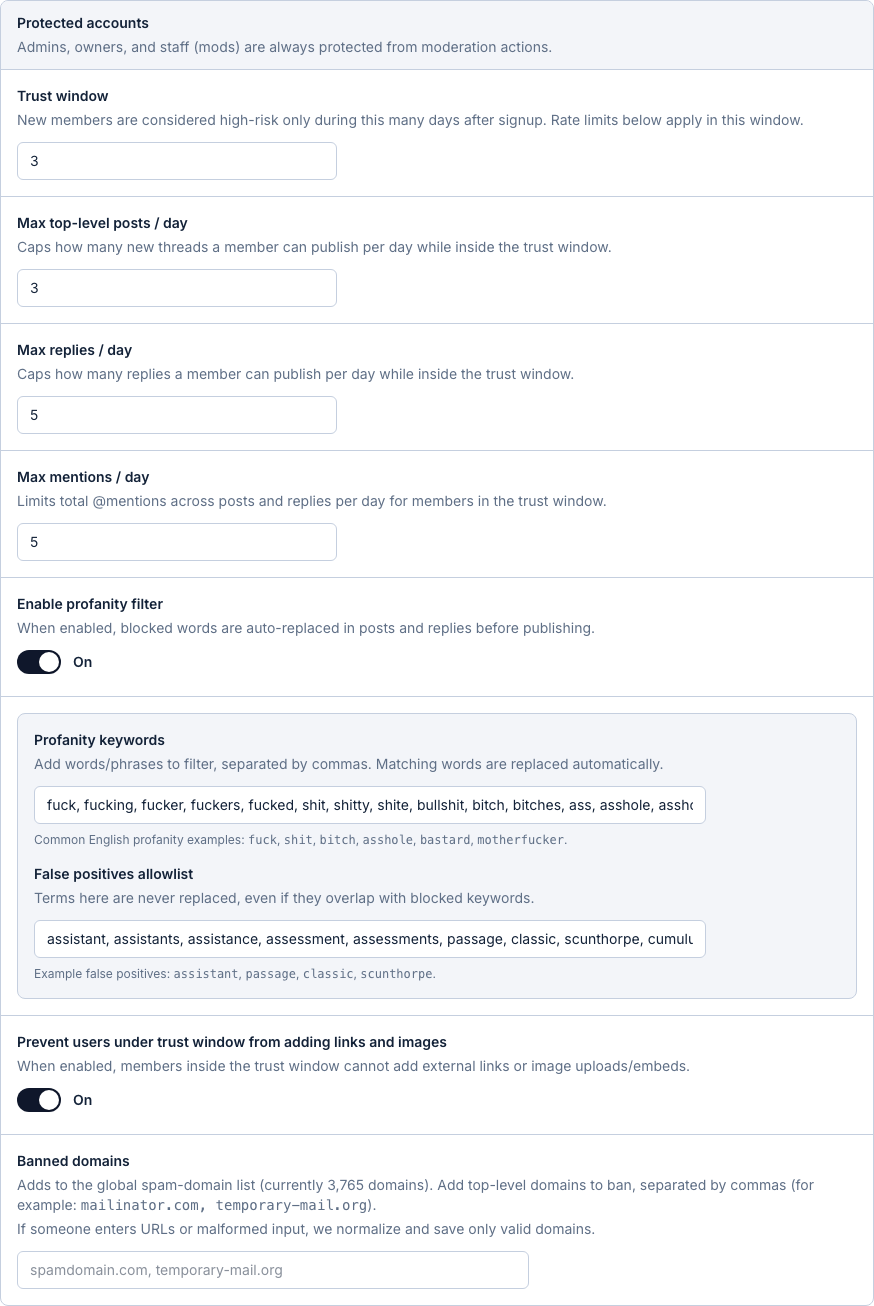
- Set `Trust window` days for new members.
- Set `Max top-level posts / day`.
- Set `Max replies / day`.
- Set `Max mentions / day`.
Step 3: Restrict Links and Images for New Members
- Find `Prevent users under trust window from adding links and images`.
- Turn it `On` if you want stronger anti-spam protection.
Step 4: Configure Profanity Filter (Optional)
- Turn on `Enable profanity filter` if needed.
- Add blocked keywords (comma-separated).
- Add an allowlist for words that should never be replaced.
Step 5: Add Banned Email Domains
- In `Banned domains`, enter domains separated by commas.
- Example: `mailinator.com, temporary-mail.org`.
- Only valid domains are saved.
Step 6: Save Moderation Settings
- Click `Save moderation settings`.
- Confirm the success message appears.
Troubleshooting
- Validation error: check limits and keep values inside allowed ranges.
- Domain list not saving: remove URLs and keep only domain names.
- Too strict for real members: lower trust-window limits and save again.
Expected Result
Your community gets safer onboarding with trust-window limits, cleaner content controls, and blocked-domain protection.