Mentions, Images, Captions, and YouTube Embeds
Use editor features that help members communicate with rich, structured content.
5 min read
Updated Mar 4, 2026
Before You Start
- Open any post editor (new post or reply).
- Make sure you have posting permission in that channel.
- Keep images ready in JPG, PNG, or WEBP format.
Step 1: Mention Members
- Type `@` followed by a username.
- Pick the right member from the suggestion list.
- Continue writing your post after the mention.
Step 2: Add Images
- Click the image button in the editor toolbar.
- Or drag and drop/paste an image into the editor.
- Use JPG, PNG, or WEBP files up to 5MB.
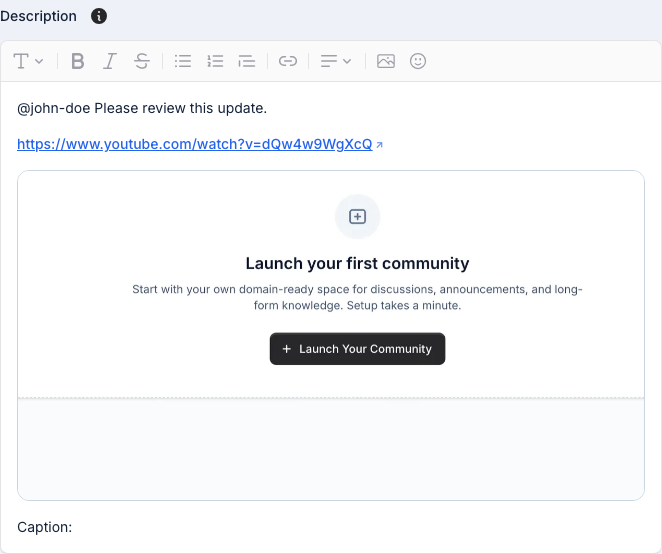
Step 3: Add a Caption
- After image upload, a caption line is added for you.
- Type a short caption so members understand the image context.
- Keep captions simple and descriptive.
Step 4: Paste a YouTube Link
- Paste a full YouTube URL into the post editor.
- In post editors, valid links are shown as video embeds automatically.
- In replies, YouTube links stay as regular links.
Step 5: Publish and Verify
- Publish your post or reply.
- Open the published content and check mentions, images, captions, and video output.
Troubleshooting
- No mention suggestions: check spelling after `@` and try again.
- Image upload blocked: use JPG/PNG/WEBP and keep file size under 5MB.
- YouTube not embedding: paste a valid YouTube link and use a post editor (not reply).
- Too many mentions: reduce mentions and submit again.
Expected Result
Your content is published with working mentions, uploaded images, readable captions, and YouTube embeds where supported.