Direct Messages: Request, Accept, Ignore, and Mute
Understand DM lifecycle states, request handling, and mute/delete behavior.
5 min read
Updated Mar 4, 2026
Before You Start
- Sign in to your community account.
- Open `Inbox` from your profile menu.
- Make sure direct messaging is enabled in your community.
Step 1: Start a New Message Request
- Open a member profile.
- Click the `Message` icon.
- Type your message and send.
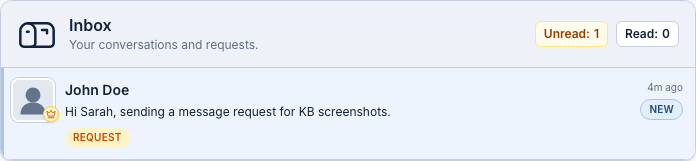
Step 2: Handle Incoming Requests
- Click `Accept request` to open full conversation.
- Click `Ignore request` to hide future messages from that thread.
Step 3: Allow Messages Again (After Ignore)
- Open the ignored conversation.
- Click `Allow messages` to reactivate the thread.
Step 4: Manage Active Conversations
- Use the composer at the bottom to send messages.
- Use `Ignore` if you no longer want messages from this thread.
- Use `Delete` to remove the conversation from your inbox.
Step 5: Understand Muted State
Muted conversations appear with a `Muted` label in Inbox. You can still open them, but notifications are reduced based on your message settings.
Troubleshooting
- Cannot send first message: open the member profile and start from `Message`.
- Request not visible: refresh `Inbox` and check the latest threads.
- Cannot type in chat: the conversation may still be pending or ignored.
Expected Result
You can start message requests, accept or ignore incoming requests, and manage active conversations from Inbox.