Search Basics and Analytics Beta Overview
Discover content quickly and understand analytics tabs for core health signals.
4 min read
Updated Mar 4, 2026
Step 1: Search Community Posts
- Open `Search` from your community navigation.
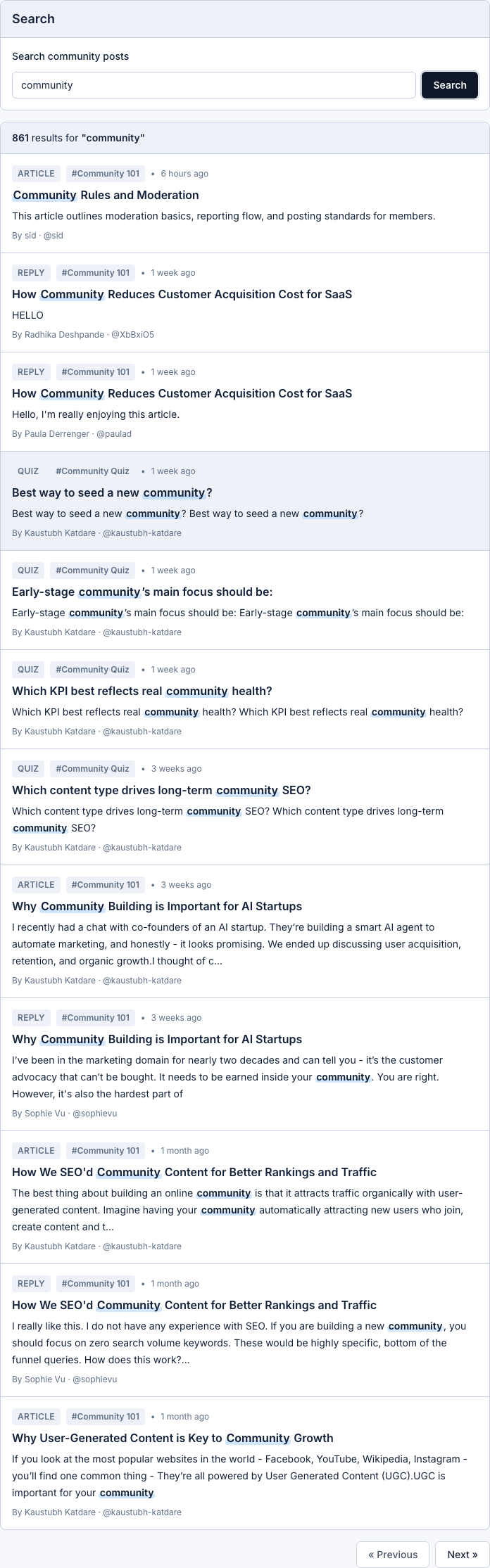
- Type a keyword (for example: `community`, `roadmap`, or `release`).
- Press `Search` to view matching posts.
Step 2: Read Results Quickly
- Each result shows type, channel, title, and short content preview.
- Click any result to open the full post.
- If no result appears, try a shorter or broader keyword.
Step 3: Open Analytics (Beta)
- Go to `Settings` -> `Analytics`.
- Use the range picker to set your reporting window.
- Review key tabs like Overview, Growth, Engagement, and Content.
How to Use Analytics
- Check trend movement, not just a single-day value.
- Compare engagement trends after content or channel changes.
- Use the same date range each week for cleaner comparisons.
Expected Result
You can find posts faster with search and monitor community trends using Analytics (Beta).